
Following your Tesla's software updates
How Tesla updates reach your car, the Standard and Advanced options, installing, release notes, and how to keep a history of your car's versions.
On this page
Your Tesla keeps changing after you buy it. Software updates arrive over the air, with fixes, improvements and sometimes new features, and Tesla decides when each car receives them. This guide explains how an update reaches your car, which setting affects how early you get it, how installation works, where to read the release notes, and how to keep a history of the versions your car has run.
How an update reaches your car
Updates happen in two steps: the car downloads the new software, then installs it. In most cases the download needs Wi-Fi, so Tesla recommends keeping Wi-Fi turned on and connected whenever you can, for example when the car is parked at home, with a stable connection of at least three bars during the download; Tesla can also send updates over the cellular network when needed. While the car downloads, a green arrow appears at the top of the touchscreen; a yellow download icon means the car is not on Wi-Fi, and a clock means the update is ready to install. An alert on the touchscreen and a Software Update section on the Tesla app’s main page also tell you that an update is available.
Not every car gets the same update at the same time: Tesla rolls updates out gradually and decides how, when and where to send each release. It does not send an update to a car on request, and small updates may bring no visible change.
Standard or Advanced
In Controls > Software, the software update preference has two options. With Advanced, your car is among the first to receive updates and may get additional releases; with Standard, it waits until other cars have installed them and receives fewer releases. Advanced is not Tesla’s Early Access program. Tesla’s own advice for getting updates quickly: choose Advanced and connect to Wi-Fi regularly.
Installing an update
Touch the clock, then choose Install Now or Set For This Time; you can also start an update from the Tesla app and follow its progress. With Automatically Install Updates turned on in Controls > Software, the car downloads updates and installs them at 2 a.m. when it is parked at the location saved as Home with more than 10% of energy left.
- The car must be in Park, and you cannot drive it while the update installs. Some functions, including safety systems and opening the doors and windows, may be limited or unavailable, and Tesla warns that trying to use the car can damage it.
- If the car is charging, charging stops during the installation and resumes on its own.
- Keep Climate On, Pet Mode and Camp Mode prevent the installation, as does Smart Preconditioning on Model S and Model X.
- The duration varies: Tesla mentions about 30 minutes for some updates, and several hours for others.
- Once the installation has started, it cannot be canceled, and you cannot go back to an earlier version.
If the touchscreen says that an update could not be completed, Tesla says to wait for the next one. If you have not received the Software Update Complete notification more than 3 hours after the update started, Tesla suggests restarting the touchscreen by holding both scroll wheels on the steering wheel for about 20 seconds, until the Tesla logo appears, then booking a service visit if the problem persists.
Where to read the release notes
The release notes appear on the touchscreen after an update, and you can read them again at any time in Controls > Software > Release Notes, or in the Release Notes tab of the owner’s manual on the touchscreen. Tesla strongly recommends reading them, as they may contain safety information, and where they differ from the owner’s manual, the release notes prevail. Tesla’s documentation only describes the notes of the version currently installed: it mentions no list of past versions or archive of earlier notes.
Keeping a history of your car’s versions
A history helps you understand what changed: a feature that appears, a setting that moves, or a behavior that differs after an update. The simplest way is to note the version number and the date after each update. The car shows the current version in Controls > Software, and the Tesla app shows it under the VIN on its main page. Tesla’s documentation does not explain the format of version numbers such as 2026.38.3, so treat them simply as the name of each release.
What Voltessa does
Voltessa’s Software screen shows the version installed on your Tesla, with the day it was first seen, and the number of an update the car announces. Further down, a version history lists every version Voltessa has seen since you connected the car, with the period it saw each one. Each date is the day of the first or last data received for that version, so the dates are approximate, and the history starts when you connect your car. It is included when you export your data.
Voltessa also shows the release notes of the installed version as Tesla publishes them, in the language Tesla provides, without translating them: it asks Tesla for them automatically when the car is awake, and says so when they are not available yet. It does not show the notes of past versions or of an update to come.
When the car announces a new version, a Software update available notification tells you, once per version; you can turn it off for all your cars or for one, and it waits for the end of your quiet hours. The vehicle log records the updates Voltessa sees announced and installed. Voltessa does not download, schedule or install updates: that stays with your car and the Tesla app.
Voltessa works with Tesla vehicles, on iPhone, iPad, Mac and Apple Watch. To keep an eye on your battery over time too, read our guide to checking your Tesla’s battery health.
Related articles
Checking your Tesla's battery health
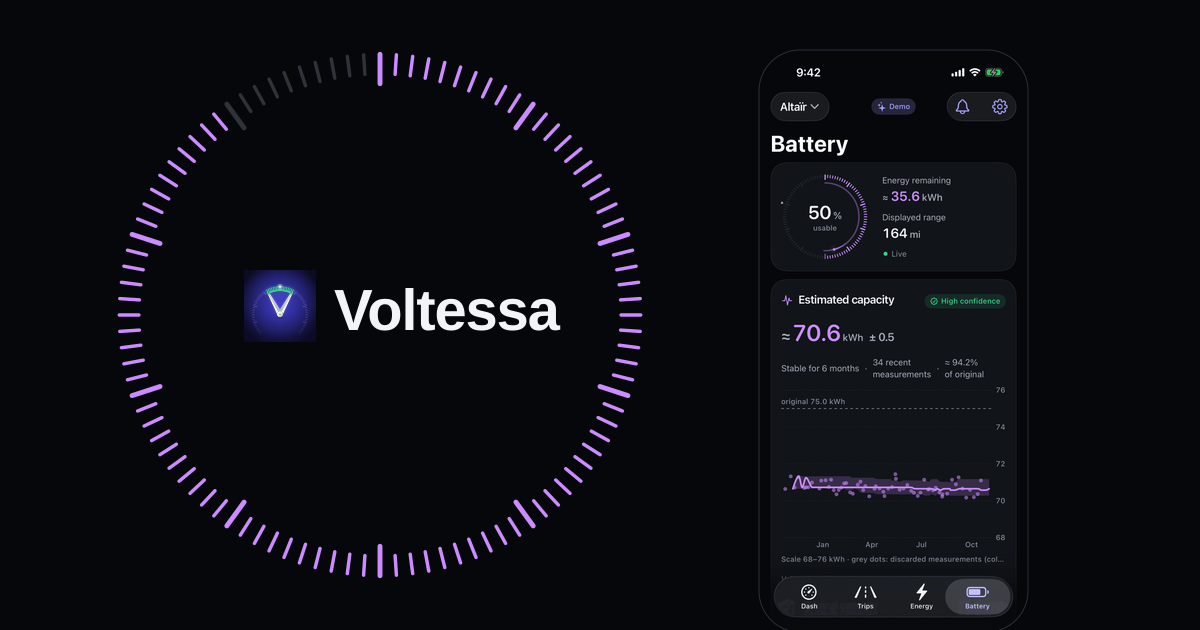
The car's own Battery Health screen and test, a certified report, or your charging data: three ways to check a Tesla battery, normal loss and the warranty.
How much does it cost to charge a Tesla?
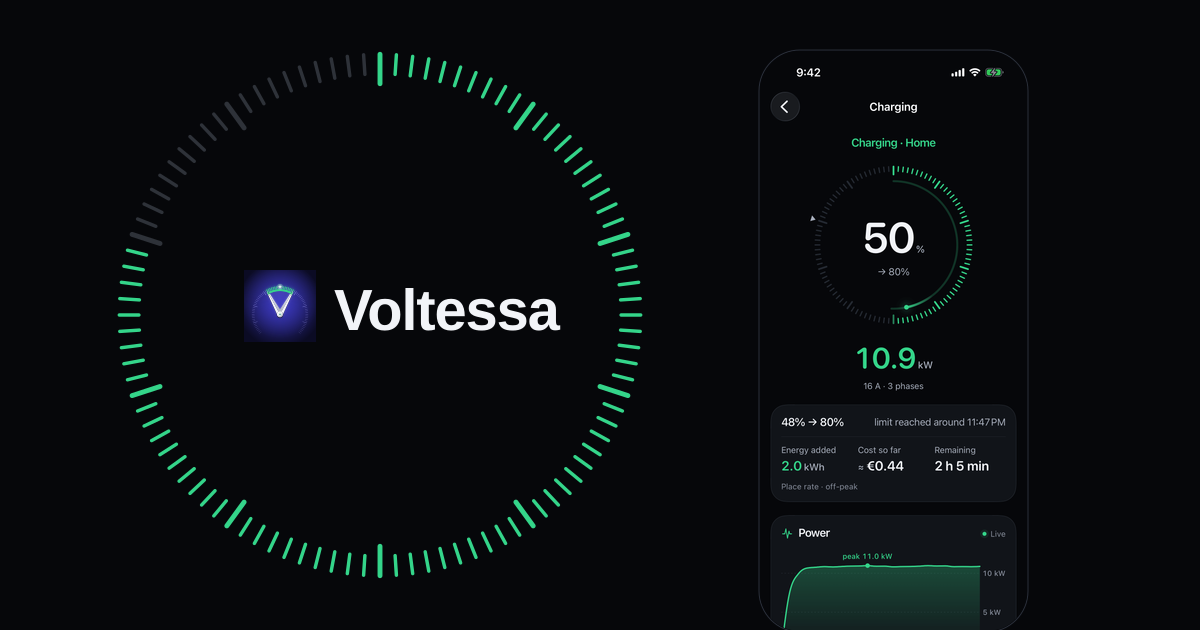
What a Tesla charge really costs at home and at a Supercharger: the formula, charging losses, off-peak hours, Supercharger prices and fees, and the invoice.
Your Tesla's real-world consumption and the Energy app
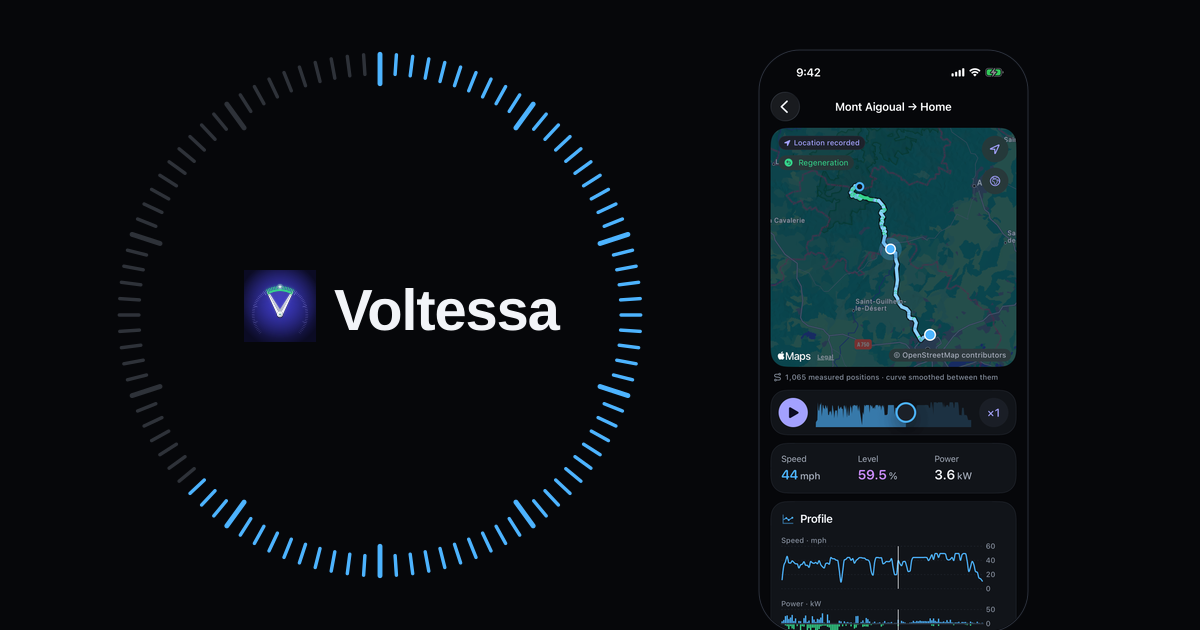
Where your Tesla shows its consumption in Wh/mi or Wh/km, why the range on screen differs, and what makes it vary: speed, cold, short trips, climate.