
Sentry Mode and the energy your Tesla uses while parked
Why a parked Tesla loses charge (phantom drain), what Sentry Mode changes, how to measure the loss on your own car, and the settings that limit it.
On this page
A parked Tesla is never completely switched off. It keeps an eye on its battery, stays reachable from the app and, when nothing needs it, goes to sleep to save energy. Tesla puts the usual loss at about 1% of charge per day, sometimes more; owners often call it phantom drain. Some features can keep the car awake, though, and Sentry Mode is the best known of them. This guide explains where the energy goes, what Sentry Mode changes, how to measure the loss on your own car, and which settings limit it.
Why a parked Tesla loses charge
When it is unplugged and not in use, a Tesla goes to sleep. It still draws on its battery from time to time: to run system checks, to recharge its low-voltage battery and to keep the high-voltage battery at a suitable temperature. That background loss is the roughly 1% per day Tesla mentions, and it grows in some conditions, such as cold weather.
The loss is larger when something keeps the car awake or uses energy while it is parked. Tesla’s list includes:
- Sentry Mode;
- climate features: Cabin Overheat Protection, Keep Climate On, Pet Mode and Camp Mode;
- preconditioning while the car is unplugged;
- the power outlets, and accessories that stay powered after you leave;
- infotainment, such as streaming;
- requests from the Tesla app and from third-party apps that collect data from the car.
Checking the car’s status often in the Tesla app also wakes it up, which restarts its normal consumption.
What Sentry Mode does
Sentry Mode keeps the car’s cameras and sensors powered while it is locked and in Park. If it detects a threat, such as someone trying to open a door or the car being towed, it can flash the lights, sound the alarm, show a message on the touchscreen, notify you in the Tesla app and save a video to a USB drive, if one is plugged in.
It is off by default. You can turn it on from the touchscreen, from the Tesla app or by voice. The Sentry Mode button in Controls applies until your next drive, while the setting in Controls > Safety > Sentry Mode stays on from one drive to the next.
Why it uses more energy
Sentry Mode keeps the cameras and sensors running so that the car can react at any moment. Tesla lists it among the reasons a car can stay awake, and its owner’s manual notes that power consumption may increase while it is active. Tesla advises turning it off when you do not need it.
Tesla does not publish a figure for Sentry Mode. The numbers quoted online, in watts or in percent per day, are owners’ measurements, and they vary with the model, the hardware, the software version, the temperature and the settings. The most reliable figure is the one you measure on your own car.
What it looked like on one car
Over the last week of October 2026, Voltessa estimated the parked loss of a Model Y. While parked, it lost on average 3.3% of charge per day, about 2.3 kWh. Sentry Mode was on for 43% of the parked time, and 91% of the loss occurred during those hours: the charge level dropped by about 7% per day while Sentry Mode was on, against about 0.5% per day while it was off. During one stop of almost 21 hours with Sentry Mode on, the car lost about 4.6 kWh (an average of about 224 W), or about 0.93 at 0.20 per kWh.
These figures come from a single car, over a single week, with its own settings and software version: they are not typical values, and anything else that drew energy while Sentry Mode was on is counted in its share. They show the order of magnitude such an estimate can reveal.
It turns off before the battery gets too low
On current software, Sentry Mode is not available in Low Power Mode. When the charge level falls to the Low Power Mode threshold, which you can set between 10% and 20% in Controls > Charging > Low Power Mode (20% by default), the car turns Sentry Mode off and the Tesla app notifies you. Keep Climate On, Camp Mode and Cabin Overheat Protection stop too, and the car still uses energy for standby, the touchscreen and the app.
How to measure the loss on your car
Your car already gives part of the answer: on recent software, the Park tab of the Energy app shows the energy used since your last drive or charge. To see what Sentry Mode changes, compare two similar parked periods, one with Sentry Mode on and one with it off: same place, similar temperatures, and no charging, preconditioning or software update during either period.
Method
Energy lost per day (kWh) ≈ drop in charge level (as a decimal: 0.10 for 10 points) × usable capacity (kWh) ÷ number of days
Cost per day = energy lost per day × your rate (per kWh)
Example
Suppose the charge level goes from 80% to 70% over 2 days parked with Sentry Mode on: 10 points, that is 5 points per day. With a usable capacity of 75 kWh: 0.05 × 75 = 3.75 kWh per day.
At 0.20 per kWh: 3.75 × 0.20 = 0.75 per day.
These values only illustrate the calculation and are not typical figures for Sentry Mode: the real loss depends on the model, its hardware and software, the temperature and your settings. The difference between your two periods gives a rough idea of what Sentry Mode costs your car. Putting that energy back costs a little more, because of charging losses: our guide to the cost of charging at home explains why. To find your battery’s usable capacity, see our guide to checking your Tesla’s battery health.
Settings that limit the loss
- Exclude the places where you feel safe. In Controls > Safety > Sentry Mode, Exclude Home, Exclude Work and Exclude Favorites keep Sentry Mode from turning on automatically there. Tesla recommends turning it off in safe places such as home or work.
- Turn it on only when you need it. The button in Controls covers a single stop, until your next drive.
- Check Cabin Overheat Protection. In Controls > Safety > Cabin Overheat Protection, you can choose On, No A/C or Off. It can run for up to 12 hours after you leave the car.
- Leave the car plugged in when you can. Tesla advises it when the car is not in use: plugged in, the car can use grid power, for example to keep its battery warm in winter.
- Look at what else uses energy. If the loss stays high with Sentry Mode off, check the climate features, the accessories that stay powered, and the apps and services connected to your car.
What Voltessa does
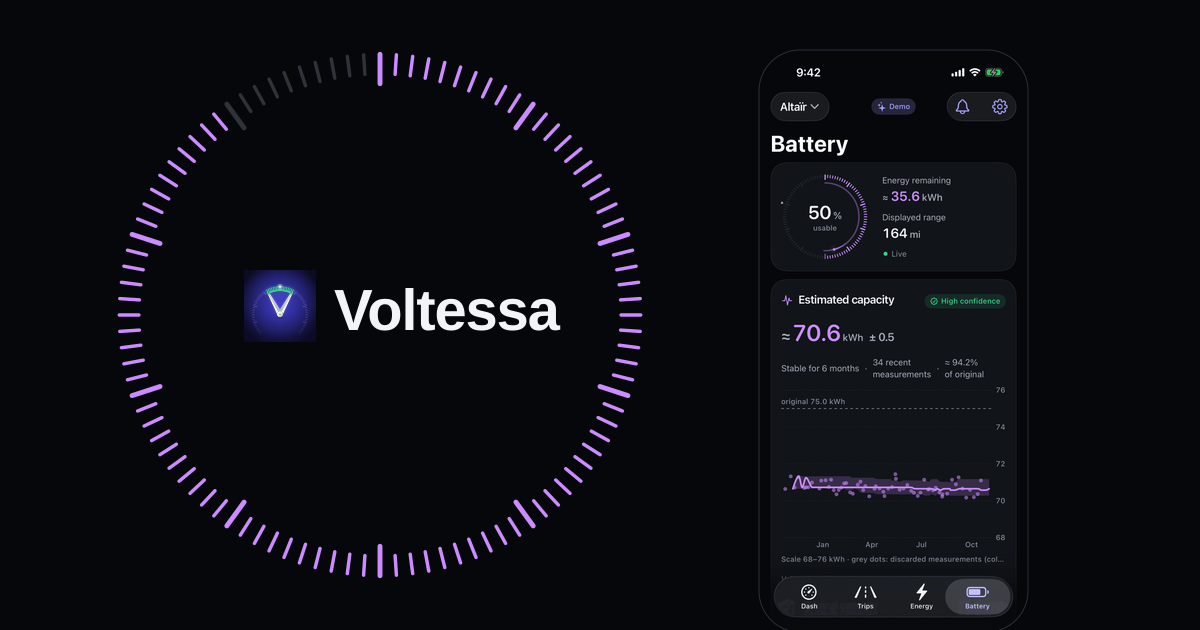
Voltessa’s Battery screen has a While parked card. It estimates how much charge your Tesla loses while it is parked, as a percentage per day and, when the car reports enough data, in kWh per day. The estimate covers stops of at least 2 hours over the last 7 days, outside trips and charging sessions, including the nights the car spends asleep. Until there are enough parked hours, the app says so instead of showing a figure.
The card also shows how much of the parked time Sentry Mode was on, and how much of the loss occurred during that time. That share is not a measurement of what Sentry Mode alone uses: anything else that drew energy at the same time is included in it.
From the app, you can also see whether Sentry Mode is on and turn it on or off, once remote commands are set up: Remote commands turned on in Voltessa, command access accepted on Tesla’s page and the Voltessa key added to your car. If the car is asleep, Voltessa asks you first, because waking it uses a little battery and can take up to 90 seconds.
Voltessa is itself a third-party app that collects data from the car. It reads the data your car sends through Tesla’s telemetry, and its status screens use the latest data the car sent, to avoid unnecessary wake-ups. The parked loss is an estimate built from your car’s data, and the app marks it as such.
Voltessa works with Tesla vehicles, on iPhone, iPad, Mac and Apple Watch. To see what your car uses while driving, read our guide to your Tesla’s real-world consumption.
Related articles
kWh/100 km: understanding your car's consumption
How electric car consumption is measured in kWh/100 km, Wh/mi or mi/kWh, what changes it (speed, cold, heating, short trips) and how to compare it fairly.
Your Tesla's real-world consumption and the Energy app
Where your Tesla shows its consumption in Wh/mi or Wh/km, why the range on screen differs, and what makes it vary: speed, cold, short trips, climate.
Checking your Tesla's battery health
The car's own Battery Health screen and test, a certified report, or your charging data: three ways to check a Tesla battery, normal loss and the warranty.